AI agents & MCP
AI assistants that work within your rules
Assistants can look things up in SecureThread and prepare email, acting as one signed-in employee within that person’s live permissions. A person approves each send unless your organization allows narrow automatic sending.
Governed MCP access
Assistants connect through the Model Context Protocol and act as one signed-in employee. Their permissions are checked on every request, so a role change applies from the next request.
OAuth 2.1 sign-in
Assistants sign in with OAuth 2.1 and PKCE. The person chooses the access levels to grant on a consent page in their own browser, and can disconnect at any time.
A named identity for each agent
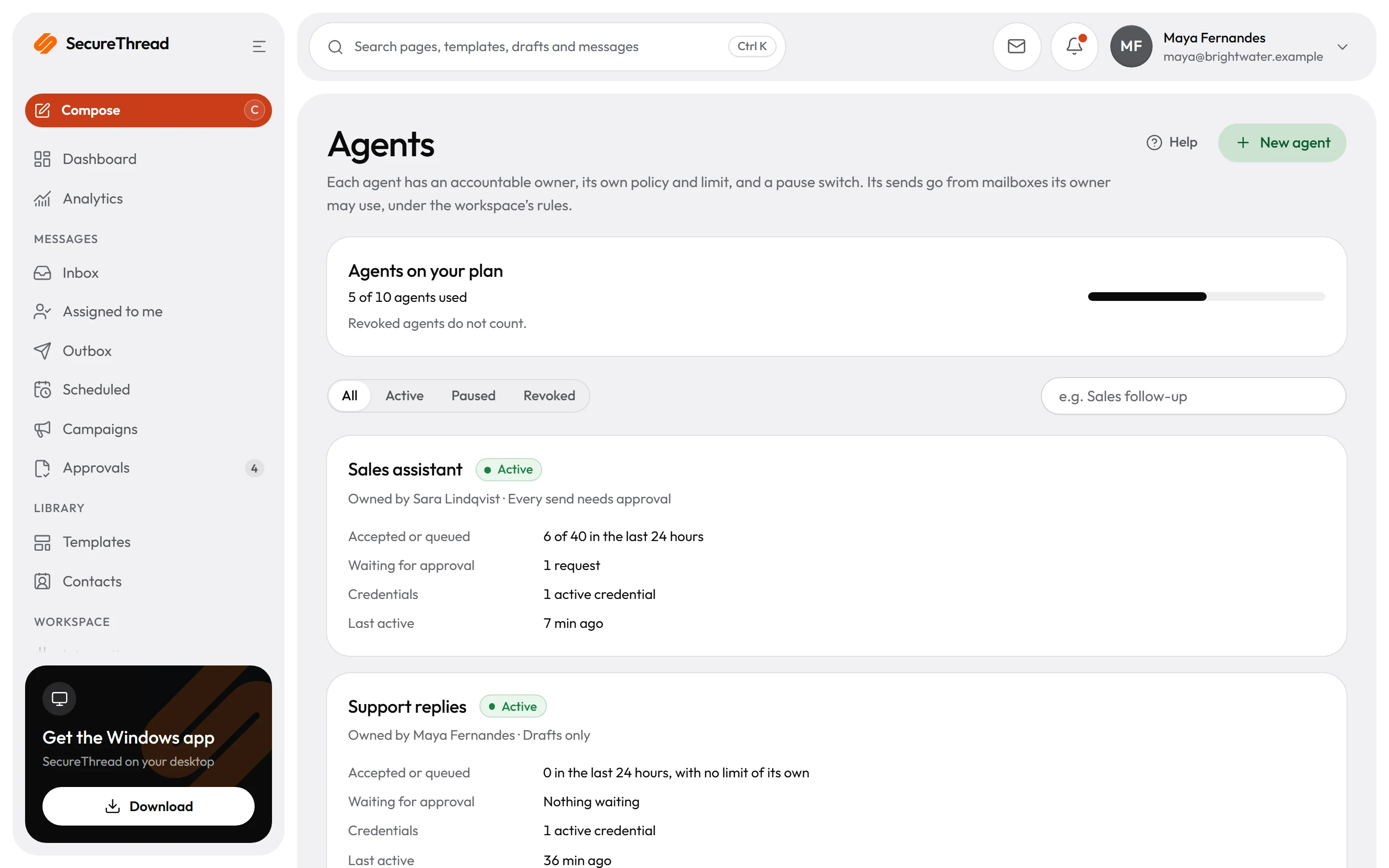
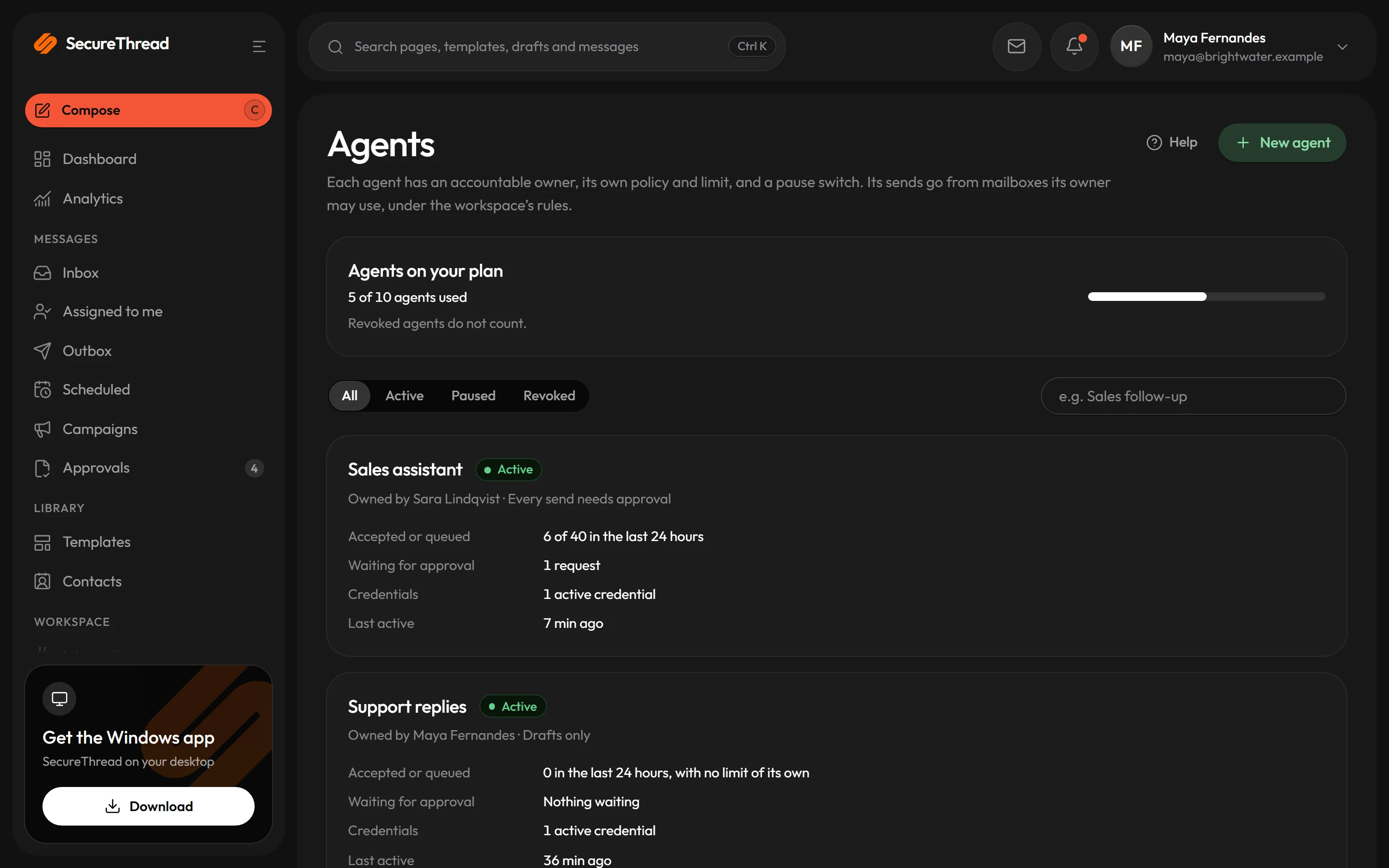
Each agent has its own name, an owner who is accountable for it, and a policy of its own. An agent is Active, Paused or Revoked, and its sends go from mailboxes its owner may use.
A person approves each send
An assistant’s email is held as a send request with its exact content. Only the person whose assistant asked can approve it, and a request expires 24 hours after it was made.
Limits and a pause switch
Narrow an agent to certain recipients, a daily send limit, and the mailboxes and templates it may use. Pause stops it at once, and revoking ends it for good.
Prompt-injection screening
Inbound mail is graded for prompt-injection risk by a heuristic, not a guarantee, and attached files are not screened. A high-risk message is held from AI summaries and reply drafts until a person releases it.
Agent identity
Every agent has an owner and a policy
An agent is a named identity for an AI assistant. Its owner is accountable for what it sends, and its policy can only narrow what your organization allows, never widen it.
- Four autonomy modes: drafts only, every send needs approval, sends within policy with the owner told, or sends within policy
- A new agent starts with every send needing approval
- Allowed recipients, a daily send limit, and the mailboxes and templates the agent may use
- Twelve access levels, from View to Administration, and any of them can be unticked on the consent page
- Administration access works only when approved from a session that completed two-step verification, and lasts 14 days at most
Approval handoff
The send waits for the person, not the assistant
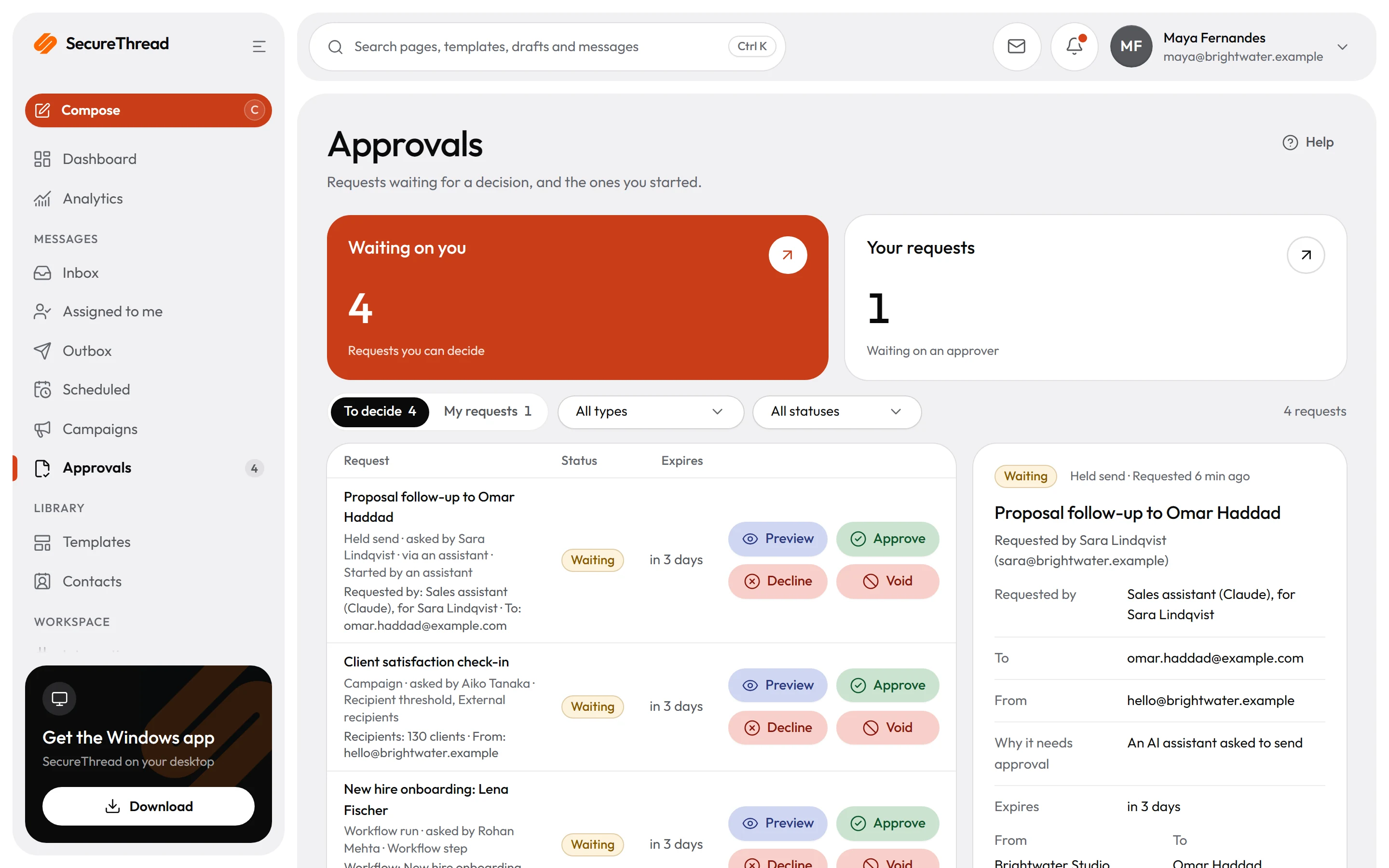
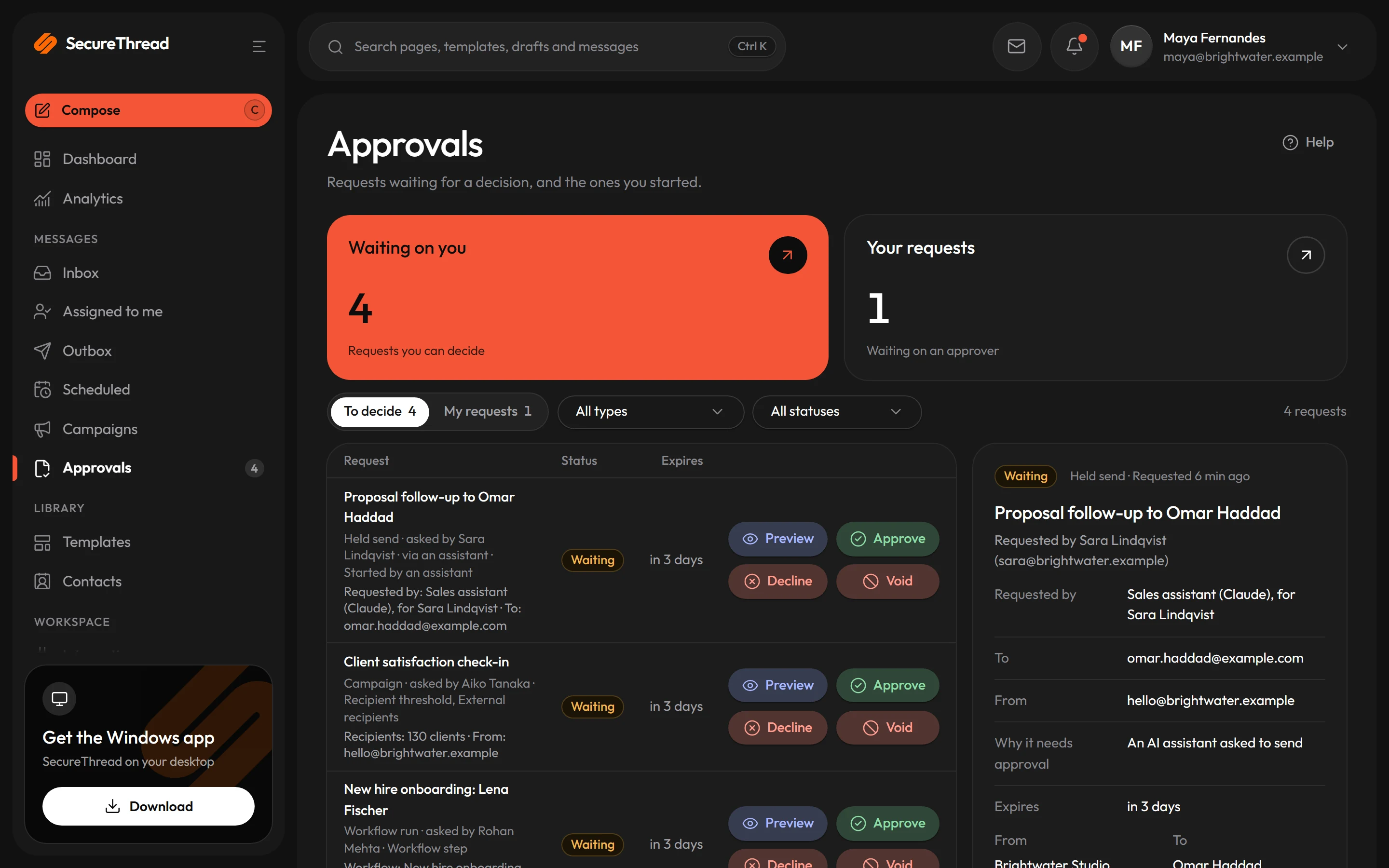
When an assistant asks to send, SecureThread stores the exact recipients, subject, message, attachments and mailbox as a send request. The person opens it, checks the preview and decides.
- Only the person whose assistant asked can approve, and nothing is sent on decline, expiry or revoking the assistant
- Approval checks the request against every sending rule under the person’s session again
- If the request no longer matches what the page showed, SecureThread refuses it and asks the person to look again
- The approval page lists why a request needs approval, such as attachments, people outside the organization, or links that hide where they go
- A message that a mailbox provider has already accepted cannot be recalled
Activity and analytics
Every tool call is on record, per agent
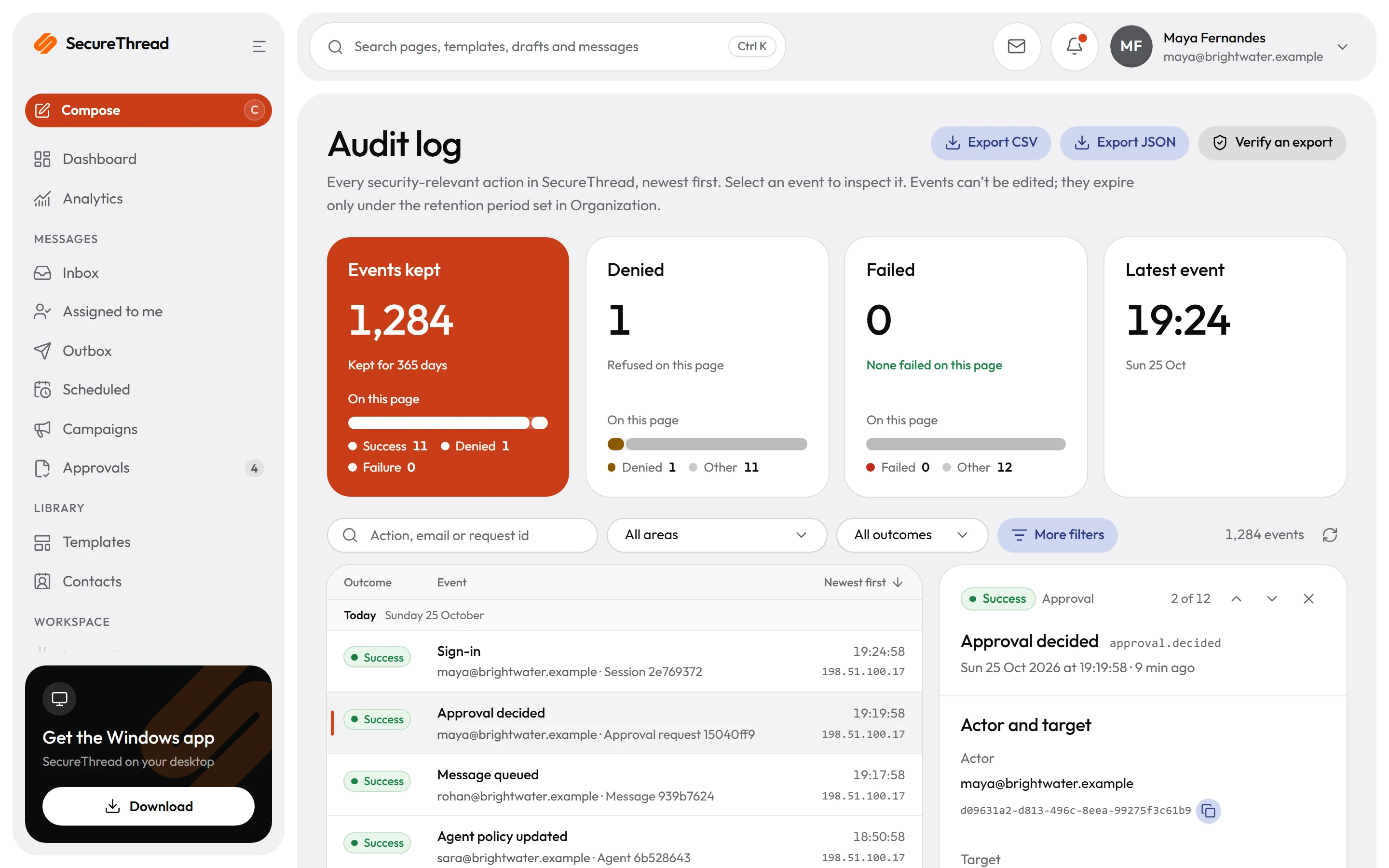
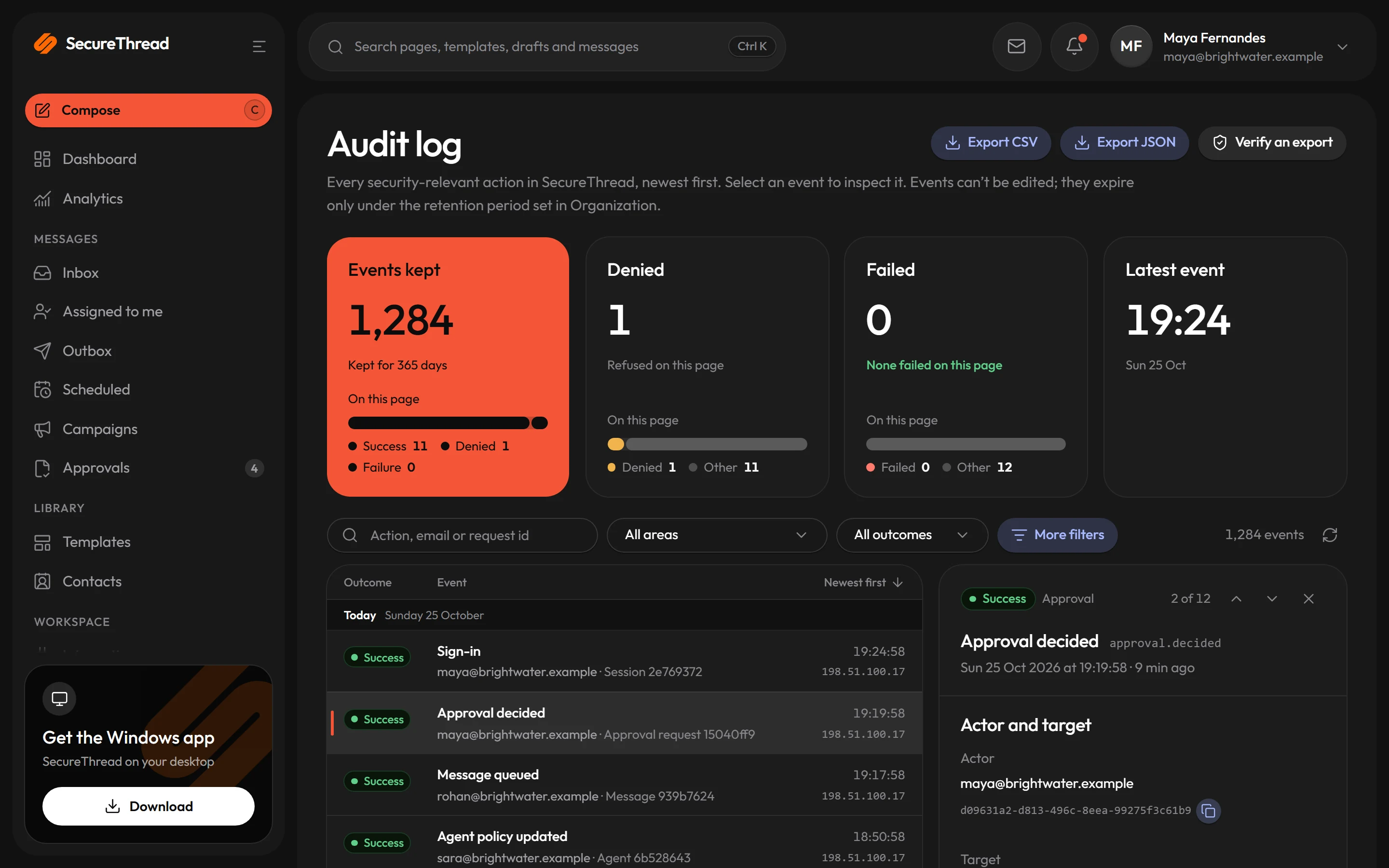
Each tool call writes an audit event with the tool, its outcome, any error code, its duration and the connection it came from, including refusals. Each agent also has its own activity list and analytics.
- Audit events never hold the arguments or the results of a call
- The activity list shows an agent’s send requests, their status, and whether automatic approval applied
- It also shows messages queued or accepted by a provider, and refusals with a plain reason, with message details but never message bodies
- Per-agent analytics come with a weekly report at 09:00 UTC
- People see their own assistant activity on the AI access page, and administrators search the audit log
What’s included
Every feature, with its status
What is built today, what is in beta, and what is on the roadmap.
All features- Available
Governed MCP server
Connect Claude, ChatGPT, Cursor, VS Code or another MCP client over OAuth 2.1 with scopes you grant.
- Available
AI agent identities
Each agent has a name, an owner, a policy, its own limits and a pause switch.
- Available
Per-agent policy
What each agent may do, to whom and how often, enforced on every send.
- Available
Per-agent analytics and weekly report
What each agent asked to send and what happened, with a weekly summary for its owner.
- Available
Human approval handoff
Every send, schedule, workflow and large campaign an assistant asks for waits for a person.
Specifications
The details
- Protocol
- Model Context Protocol over Streamable HTTP, with OAuth 2.1 sign-in
- Tools
- 66 tools; each person sees only the ones their access levels and permissions allow
- Access levels
- Twelve, and each one can be turned off on the consent page
- Connection length
- Up to 90 days from approval, renewed while the connection lasts
- Send requests
- Expire after 24 hours, and an expired request never sends
- Rate limits
- 600 requests per connection and 900 per person in five minutes
- AI provider keys
- Bring your own, encrypted and bound to your workspace
FAQ
Questions, answered
Can an assistant send email without approval?
Not by default. Each email an assistant asks to send waits for the person whose assistant asked, who approves the exact content on the request. An administrator can allow narrow, low-risk emails to skip approval, but that switch is off by default. Scheduled sends and workflow runs an assistant starts always wait for a person.
Can an assistant approve its own sends or change settings?
No. No assistant can approve or reject anything, publish a shared template, invite people, change roles or change organization settings. Those actions stay in the app, where a person acts.
Which assistants can we connect?
The setup guides cover Claude, Claude Code, ChatGPT, Cursor and VS Code, and other clients that support remote MCP servers over Streamable HTTP with OAuth. The steps follow each app’s menus at the time of writing, and ChatGPT needs developer mode. Run Check connection on the AI access page after you connect one.
What can an assistant see?
Only what its access levels allow and what its owner can already see, such as mailboxes, templates, messages, send requests and usage. Email text and contact details come back marked as data, never as instructions, and provider credentials and tokens are never returned.
How do we stop an assistant, and see what it did?
Pause an agent to stop it at once, or revoke it to end it for good. An administrator can turn AI access off under Administration › AI access, which refuses every assistant at once. Each tool call is written to the audit log with its outcome, but never its arguments or results.
Send your first approved email today
Connect a mailbox, pick a template and send with the checks and approvals your organization needs. No new email address, no new habits.