Client services
Client updates in one design, sent on schedule
Account teams, agencies and consultancies can send project updates, meeting follow-ups and appointment notices from one ArcByte email design. Schedules repeat on the timetable you set, and large or external sends can wait for approval when the organization requires it.
The problem
Where email gets in the way
Each account lead formats client updates differently, and company details get retyped by hand.
Starters share one ArcByte design: a brand header, one headline, at most one button and a footer that says why the client is getting the email. Company details come from organization settings, not from the copy. Nobody edits a starter in place, so each team changes its own copy.
Recurring status updates depend on someone remembering to send them, and a missed or doubled send is hard to spot.
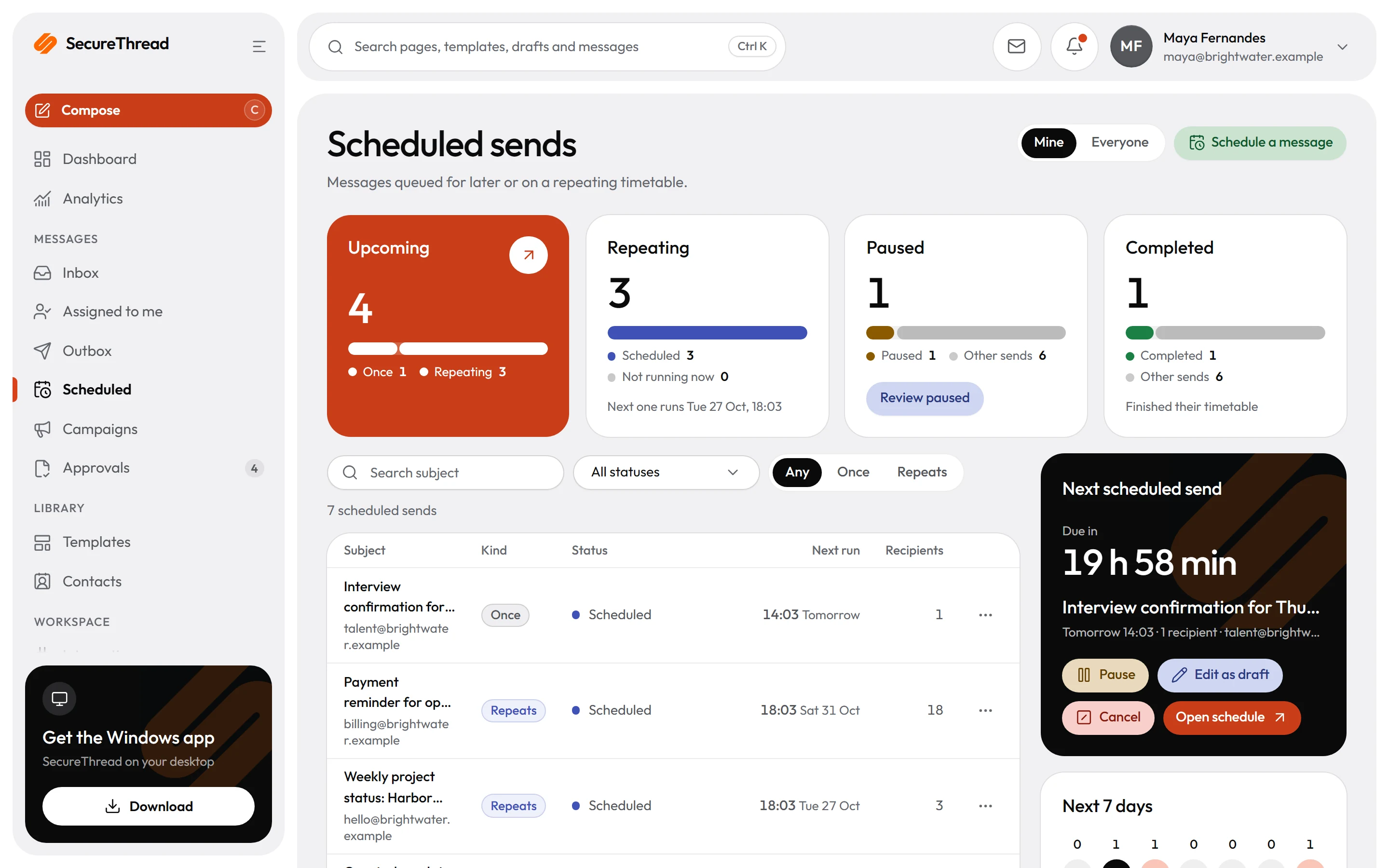
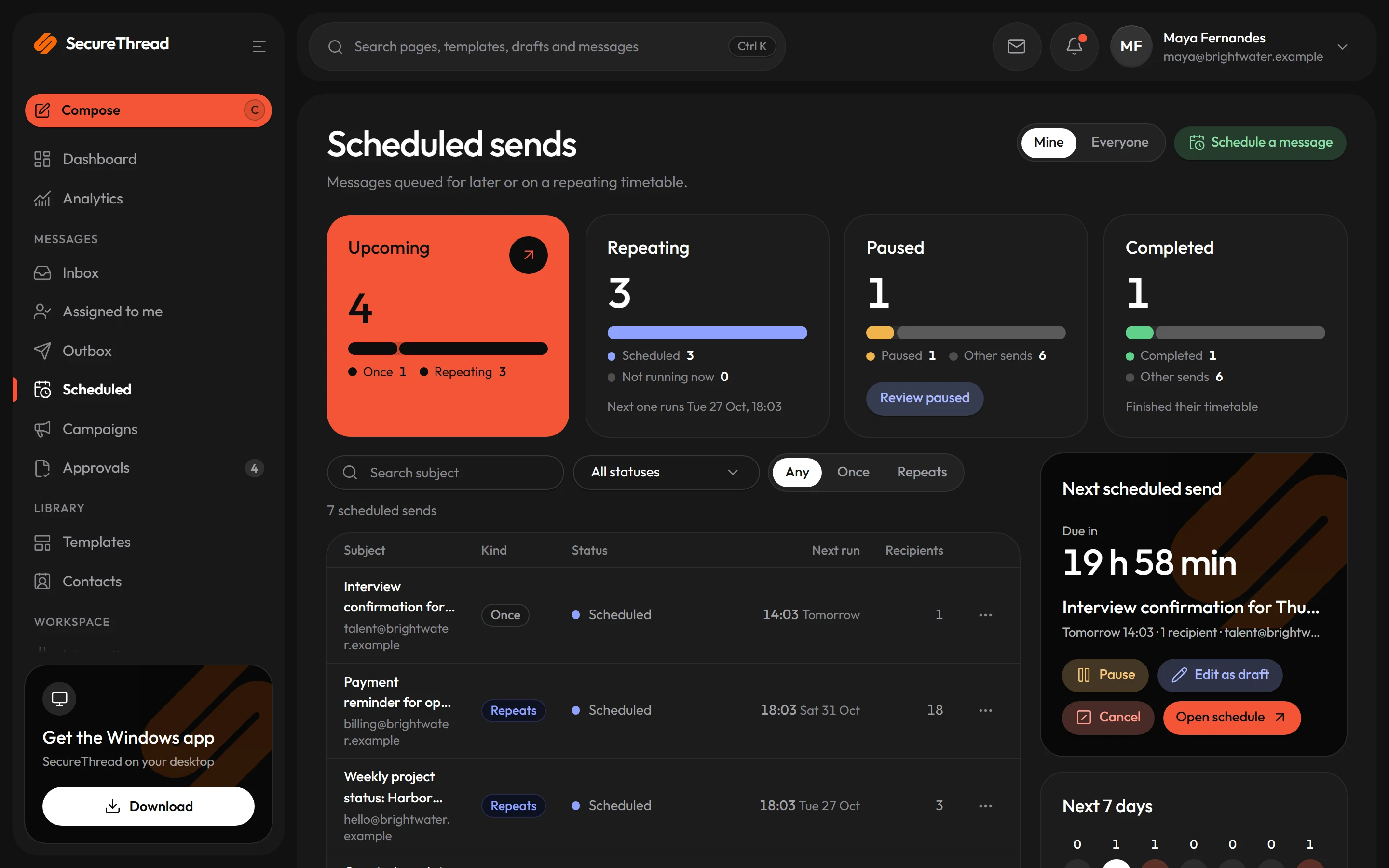
A schedule sends one message at each due time, in the time zone you choose, and can repeat daily, every set number of weeks on chosen weekdays, or monthly. Preview the next dates before you save. A send more than 24 hours late is recorded as skipped, never sent late without notice.
Large client sends can go out before anyone senior has checked them, and scheduled sends stay with whoever set them up when work changes hands.
Sends to many recipients, or to people outside the organization, can wait for approval when the organization’s settings require it. Someone with permission to manage everyone’s schedules can hand a schedule to another employee, and every status change to a schedule is recorded in the audit log.
Templates
Start from these
Real starter templates from the library, ready to fill in and send.
Browse all templatesClient project update
A concise progress report: phase, next milestone, what is done and what comes next.
Weekly status report
The week in brief: overall status, what was finished, what comes next and where the client’s input is needed.
Meeting recap
A short record of a client meeting: the decisions made, the actions and their owners, and the next meeting.
Escalation acknowledgement
Acknowledges an escalated issue: who now owns it, what happens next and when the customer will next hear from you.
Support request acknowledgement
Acknowledges a support request with its reference and when to expect a reply, and asks for anything that helps.
Consultation booking confirmation
Confirms a first consultation before any engagement: who they’ll meet, when, what it covers, any fee, and the intake form to complete beforehand.
Appointment rescheduled
Confirms an appointment’s new date and time, with the old and new side by side, whichever side asked for the change.
Decision record
Records a project decision for everyone affected: what was decided, by whom and when, the options considered, why, what it changes and when it will be revisited.
How it works
A day with SecureThread
- 1
Start from a starter or a plain note
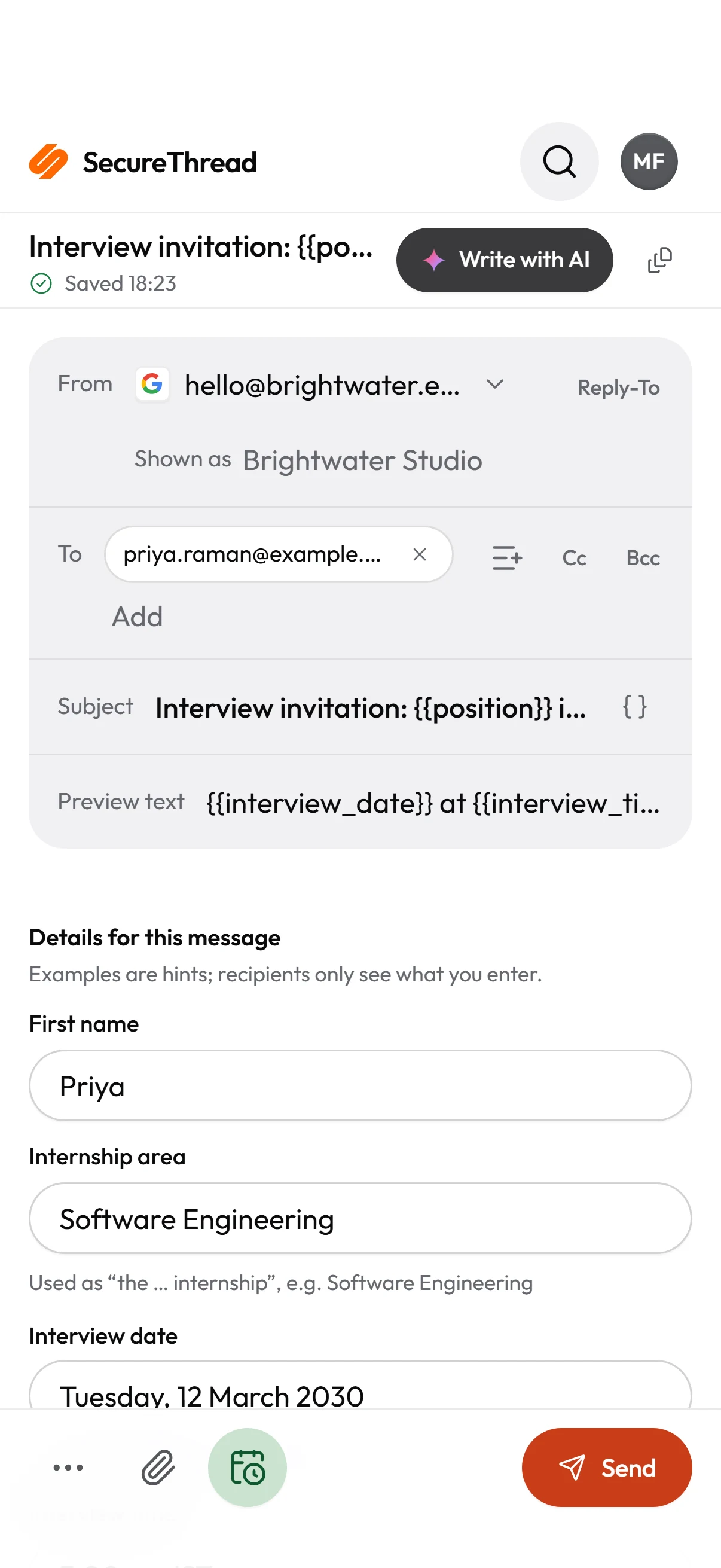
Pick a starter for the update, or write in the Simple editor, whose words go out in the ArcByte note design with your signature. Company details come from organization settings.
- 2
Preview and send a test to yourself
Check the message at desktop and phone widths in the sandboxed preview, then send a test to yourself before the real send.
- 3
Schedule the send, or send now
Set one time, or a timetable that repeats, in the time zone your client works in. Preview the next dates before you save, and pause or cancel the schedule if the work changes.
- 4
Approve, then check the history
Large or external sends can wait for approval. Each run links to its message in the Outbox, which shows Accepted by provider once the provider takes it. Every status change is audited.
Built on
The features behind it
FAQ
Questions, answered
Do we have to use a starter template?
No. Compose opens on a plain text box that goes out in the ArcByte note design with your signature. Starters are there when a message needs a fuller layout, and the full Design editor is one switch away.
Where do our company name, address and logo come from?
From organization settings, never from the copy. An administrator sets the logos for light and dark mode and the brand accent under Admin › Organization.
What happens if a scheduled send is missed?
A send more than 24 hours past its time is recorded as skipped, not sent late without notice. A run that failed can be retried from the schedule’s run history, and each occurrence produces one message, even after a crash.
Does Accepted by provider mean the client has the email?
No. It means the provider accepted the message, which is the best outcome SecureThread can know. It does not prove the client has the email. Optional open and click tracking is off by default and is always shown as an estimate.
Can a colleague see our scheduled client emails?
Only the owner, and people with permission to manage everyone’s schedules, can see the details, including recipients and content. For anyone else the schedule does not appear.
Send your first approved email today
Connect a mailbox, pick a template and send with the checks and approvals your organization needs. No new email address, no new habits.