Teams using AI
AI assistants draft. People control what is sent.
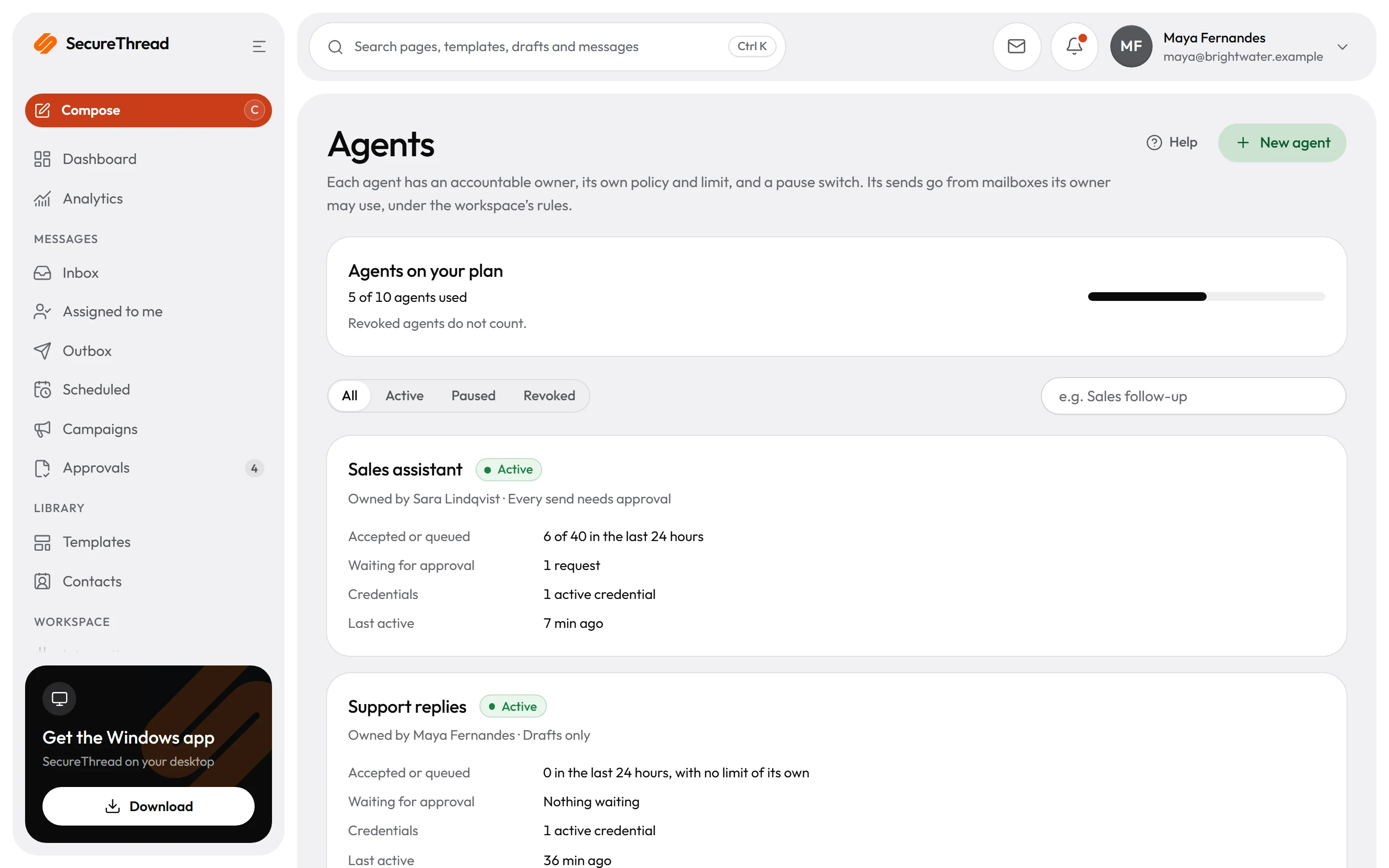
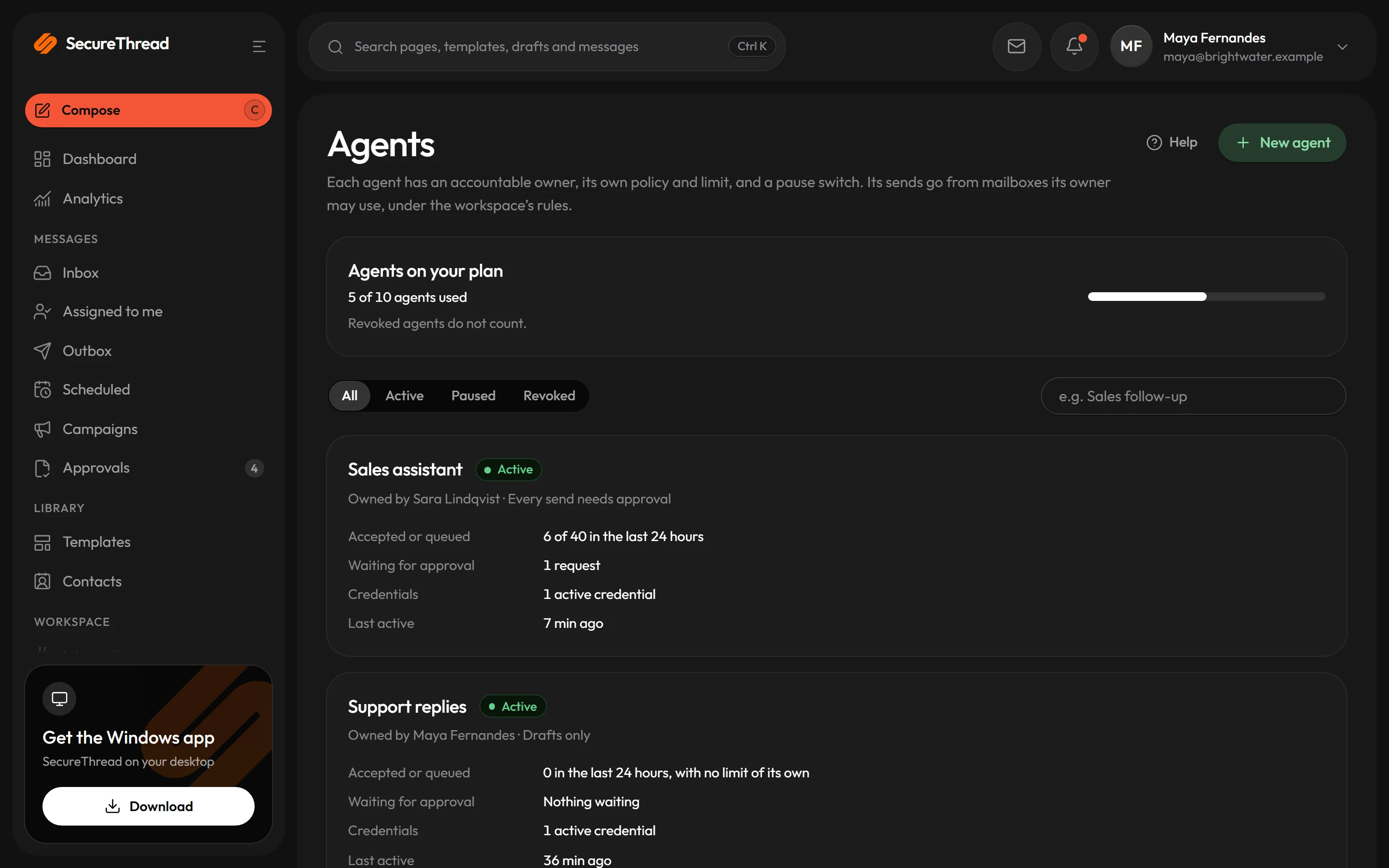
Teams connect assistants such as Claude, ChatGPT, Cursor and VS Code to SecureThread. The assistant drafts and checks email as one signed-in employee, and a send waits for approval unless your organization allows narrow automatic sends.
The problem
Where email gets in the way
An AI draft could reach a customer before anyone has checked the exact text.
An assistant prepares the draft and asks to send it. The send request stores the exact recipients, subject, message, attachments and mailbox. A person approves that content before it is sent, unless your administrator has allowed narrow automatic sends.
It is unclear which assistant acted, or whose access it used.
Each assistant acts as one signed-in employee, only within that person’s permissions at that moment. An agent gives an assistant a name, an owner and a policy. Every tool call is recorded in the audit log with its tool, outcome and error code. Arguments and results are never recorded.
An assistant can keep its access after the work is finished or a role has changed.
Administrators can turn AI access off for the whole organization and revoke any connection. A person can pause an agent at once. Removing a permission or changing a role takes effect on the next request.
Templates
Start from these
Real starter templates from the library, ready to fill in and send.
Browse all templatesMeeting request
Asks for a meeting in a personal note: a clear purpose, a few suggested times and a link to pick another.
Follow-up after a meeting
Follows up after a meeting or call with the agreed next steps, a link to the notes and one clear ask.
Request for information
Asks a client or partner for the information a piece of work needs, as a clear checklist with a date.
Holding reply
A prompt reply confirming you have someone’s message, saying when a full answer will follow and why it needs a little time, so they are not left waiting in silence.
Service incident notice
Tells customers about a live problem: what is affected, where things stand and when the next update comes.
Scheduled maintenance notice
Gives customers advance notice of planned maintenance: when it happens, what is affected and what to expect.
Escalation path update
Tells teams who to escalate operational problems to from a given date: the contact at each level, out-of-hours and on-call cover, and what counts as urgent.
Shift handover note
From the outgoing shift lead to the incoming one: open issues, work in progress, safety and equipment notes, promises made to customers and who to call, so nothing is lost at changeover.
How it works
A day with SecureThread
- 1
Turn on AI access
An administrator switches on AI access under Administration › AI access. It is off by default, and each person’s role must allow AI assistants.
- 2
Connect each assistant
Each person adds the SecureThread address to their assistant, approves the connection in their own browser and chooses the access levels to give, such as View, Write drafts or Send email.
- 3
Draft in the assistant
The assistant looks up the templates and mailboxes you can use, creates and edits drafts, checks and previews them, and sends test emails to your own address.
- 4
Approve or decline
Each send request shows the exact content and why it needs approval. Approve and send, or decline. A request expires 24 hours after the assistant asked, and recent assistant activity lists what each assistant did.
FAQ
Questions, answered
Can an assistant send email without a person approving it?
Not by default. Every email an assistant asks to send waits for approval. Your administrator can allow automatic sending for narrow cases only: a reviewed shared template that the assistant fills in without writing its own subject or body, sent from the person’s own mailbox, with no attachments and to no more recipients than the administrator sets.
Can an assistant approve its own send?
No. An assistant cannot approve or reject anything. Only the person whose assistant asked can approve a send request. A request expires 24 hours after it was made, and an expired request never sends.
What can an assistant access?
Only what the person approved and what their role allows at that moment. Each connection gets access levels, such as View, Write drafts, Send email, Campaigns or Workflows. SecureThread checks those levels and the person’s live permissions on every request.
Can an assistant publish templates, invite people or change settings?
No. An assistant cannot publish a shared template, invite people, change roles or change organization settings, and it cannot approve or reject anything. It can submit a shared template for review. Those decisions stay in the app.
Which assistants can connect?
The setup guide covers Claude, ChatGPT, Cursor, VS Code and Claude Code. Any client that supports remote Model Context Protocol servers over Streamable HTTP with OAuth can use the endpoint. Apps change their menus often, so follow the app’s own connector guide if a name differs.
Send your first approved email today
Connect a mailbox, pick a template and send with the checks and approvals your organization needs. No new email address, no new habits.